


Convert Word DOCX to PDF
Document Solutions for Word provides a complete API to load, modify, and export DOCX files to PDF using a familiar object model based on the Microsoft Office API, Word JavaScript API, and OpenXML SDK.
In this tutorial, you’ll learn how to load a Word document, configure PDF export options, and save it as a PDF programmatically. Feel free to download the sample project used in this tutorial to follow along, or watch the video tutorial below:
Prerequisites
Before starting, make sure you have the following:
Visual Studio 2022 (or later)
.NET 6 or .NET 8 SDK
Create a .NET Console Application
1. Open Visual Studio.
2. Select Create a new project → Console App (.NET 6 or later).
3. Name your project.
4. Install the DS.Documents.Word package from nuget.org or via the NuGet Package Manager in Visual Studio:
Install-Package DS.Documents.Word5. Import the required namespaces at the top of your Program.cs file:
using GrapeCity.Documents.Word;
using GrapeCity.Documents.Word.Layout;
using System.IO.Compression;
Once setup is complete, your project is ready to load and process Word documents.
Load a Word Document (.docx) File in .NET
To begin, initialize a new GcWordDocument instance and load an existing DOCX file using the Load() method:
// Initialize a new DsWord document instance
var wordDoc = new GcWordDocument();

// Load a Word file into memory
wordDoc.Load(@"ProcurementLetter.docx");
This loads the Word file into memory, allowing you to modify or convert it programmatically.
Configure PDF Output Settings and Convert DOCX to PDF in .NET
Once the document is loaded, you can convert it to PDF using the GcWordLayout class.
This class handles layout rendering and provides the SaveAsPdf() method to export directly to a PDF file.
First, create a layout instance and define your PDF output options using the PdfOutputSettings class:
// Create a layout instance for the loaded Word document
using (var layout = new GcWordLayout(wordDoc))
{
    // Define PDF output settings
    PdfOutputSettings pdfOutputSettings = new PdfOutputSettings();

    // Control compression level for the PDF file
    pdfOutputSettings.CompressionLevel = CompressionLevel.Fastest;

    // Enforce PDF/A conformance for long-term archiving
    pdfOutputSettings.ConformanceLevel =
        GrapeCity.Documents.Pdf.PdfAConformanceLevel.PdfA1a;

    // Export the document as a PDF file
    layout.SaveAsPdf("ProcurementLetter.pdf", null, pdfOutputSettings);
}
This code performs the following actions:
Generates a PDF layout from the loaded Word file
Applies compression and conformance options
Saves the output to a file named ProcurementLetter.pdf
Review PDF Output Options
The PdfOutputSettings class provides multiple configuration options to customize how the PDF is generated:
Property | Description |
|---|---|
CompressionLevel | Controls whether the PDF is optimized for speed or file size. |
ConformanceLevel | Sets the PDF/A compliance level (e.g., PDF/A-1a, PDF/A-2b). |
DocumentInfo | Adds metadata like title, author, and creation date. |
ImageOptions | Configures image compression and color profile behavior. |
Linearized | Determines whether the PDF should be web-optimized for fast viewing. |
PdfVersion | Sets the PDF version (e.g., "1.7"). |
Metadata | Adds custom XMP metadata to the document. |
BackColor | Sets the background color of the exported PDF pages. |
For example, you can include additional metadata as shown below:
pdfOutputSettings.DocumentInfo = new GrapeCity.Documents.Pdf.DocumentInfo
{
    Author = "MESCIUS Documentation Team",
    Title = "Procurement Letter",
    Creator = "Document Solutions for Word"
};
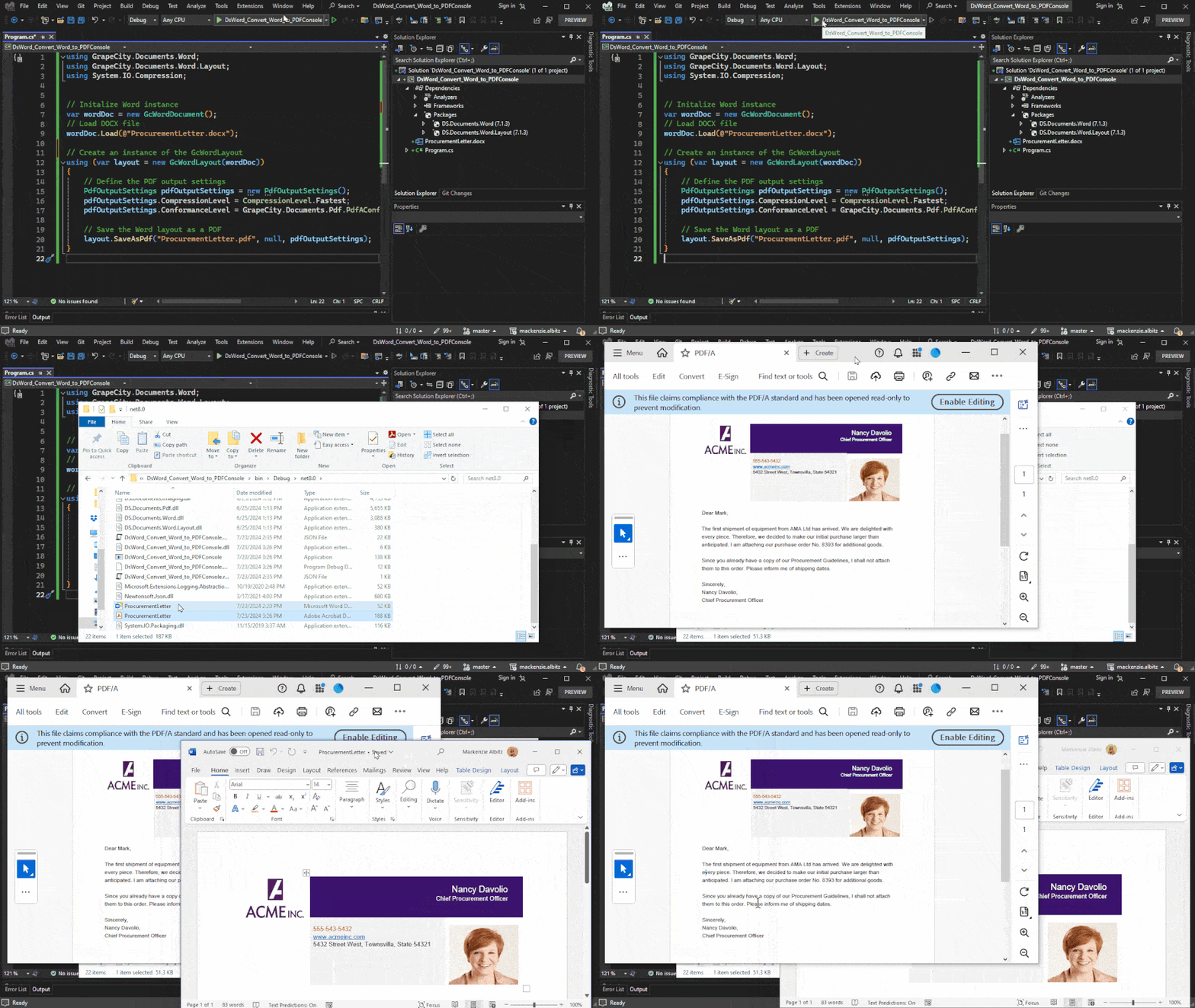
Run the Application
Press F5 to build and run the project.
When execution completes, the converted PDF will be saved in the project’s output directory.
You can verify that the formatting, layout, and embedded images match the original Word file, ensuring a high-quality PDF conversion.
FAQ
Do I need Microsoft Word installed to use DsWord?
No. Document Solutions for Word (DsWord) is a standalone API and does not require Microsoft Word or Office interop. It can load, modify, and export DOCX files entirely in code, making it ideal for server-side and automated workflows.
Can DsWord preserve formatting, images, and page layout when converting to PDF?
Yes. DsWord reproduces the full layout of Word documents, including fonts, images, tables, page margins, and styles when exporting to PDF. The resulting file closely matches the original Word file.
What is the purpose of the GcWordLayout class?
The GcWordLayout class handles layout rendering for Word documents before export. It ensures that complex page elements like headers, footers, columns, and tables are positioned correctly in the output PDF.
Can I customize the PDF output (e.g., compression, version, or metadata)?
Absolutely. You can configure compression, conformance level, PDF version, document metadata, and image export behavior using the PdfOutputSettings class. This gives you complete control over quality, performance, and compliance (e.g., PDF/A).
Where is the exported PDF saved?
The converted PDF is saved to the path specified in SaveAsPdf(). If only a filename is provided (e.g., "ProcurementLetter.pdf"), it will be saved to the project’s output directory (for example, bin/Debug/net8.0/).
Does DsWord support batch conversion for multiple DOCX files?
Yes. You can loop through a folder of DOCX files, loading and exporting each to PDF using the same pattern demonstrated in this tutorial. This is particularly useful for bulk reporting or automated document workflows.
Can DsWord add or edit content before converting to PDF?
Yes. You can programmatically insert text, images, tables, and paragraphs; edit document properties; and apply styles before exporting to PDF. DsWord provides a rich object model to modify Word content in memory.
Is DsWord cross-platform?
Yes. DsWord runs on .NET 6, .NET 8, and .NET Framework, and supports deployment across Windows, macOS, and Linux environments, making it suitable for both desktop and server applications.