To display a ToolTip for a Ribbon item, use the smart designer, Properties window, or add code to set the RibbonItem.ToolTip property. Each option is described below.
Complete the following steps:
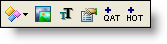
 . The Text Settings dialog box appears.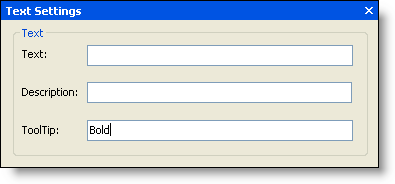
Optionally, you can set the RibbonItem.ToolTip property using the Properties window. Click the toggle button to reveal the item's properties in the Properties window. Locate the RibbonItem.ToolTip property and enter the ToolTip text in the box, for example, Bold.
To write code in Visual Basic
| Visual Basic |
Copy Code
|
|---|---|
' type the Imports directive for the namespace
Imports C1.Win.C1Ribbon

Private Sub Form1_Load(ByVal sender As System.Object, ByVal e As System.EventArgs) Handles MyBase.Load
    With RibbonToggleButton1
        ' No text label
        .Text = ""
        ' Set the 16x16 image
        .SmallImage = My.Resources.Bold;
        ' Show a ToolTip
        .ToolTip = "Bold"
    End With
End Sub
|
|
To write code in C#
| C# |
Copy Code
|
|---|---|
// type the using directive for the namespace
using C1.Win.C1Ribbon;

private void Form1_Load(object sender, System.EventArgs e)
{
    // No text label
    this.ribbonToggleButton1.Text = "";
    // Set the 16x16 image
    this.ribbonToggleButton1.SmallImage = My.Resources.Bold;
    // Show a ToolTip
    this.ribbonToggleButton1.ToolTip = "Bold";
}
|
|

