
Posted 3 December 2025, 12:54 pm EST - Updated 3 December 2025, 12:59 pm EST
We have a system in our application that helps users rapidly create custom reports that are built by nesting tables. This allows them to build reports with varying levels of headers and sub-totalling footers. When they run the report they can select a range of dates to run, and this can result in some of the sub-sections having no data to display since all records in that category are 0. The table has a Filter to exclude all 0 records, but the users would like the entire sub-section to be hidden. We are able to make this work by putting a Visiblity expression on the row of the parent table that contains the sub-section table. All the other sub-sections within that row automatically move up but is seems the row of the “outer” table doesn’t shrink based on what was printed, so the following section in the “outer” table has a gap before it is printed.
For example, here is the report structure showing the nested tables:
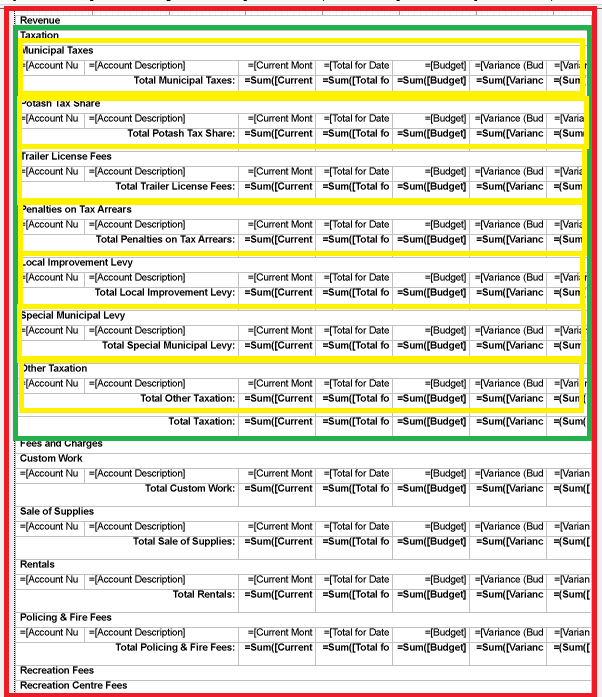
The red section is the “outer most” table. It has two rows with two large “level 1” sections, the first outlined in green. Each “level 1” table has multiple rows each containing “level 2” tables, outlined in yellow (for the first table). Each of the Yellow tables filters any “all 0” records, with each row in teh “green” table filtering out the whole table if it empty (all rows are 0). All the yellow (level 2) tables move up to fill any gaps, and the footer of the “green” table moves up as well. What doesn’t move up is the next “green” (level 1) table.

The row height for the row for the “red” table that contains the entire “green” table doesn’t change. Inspecting the properties I see that the internal “CanShrink” property of that row is False even though all TextBoxes on all reports have their CanShrink property set to True.
Is there a way to get that row to shrink so that the next row at the same level?