


Scroll Bar Annotation
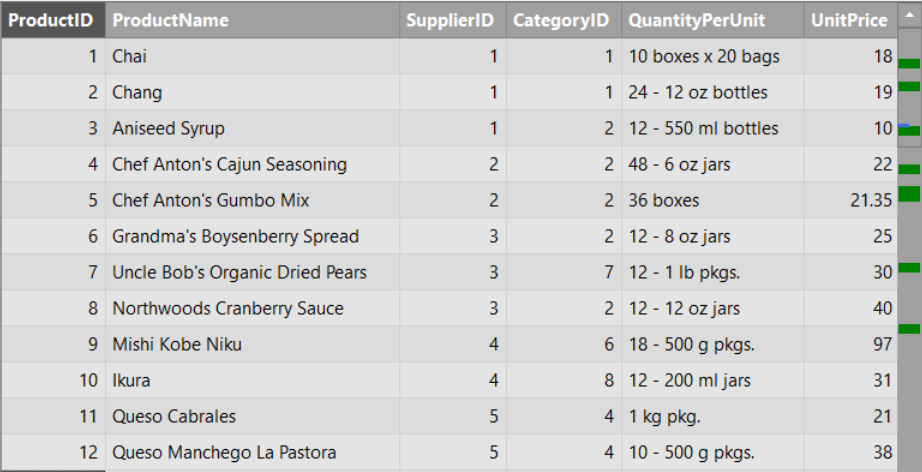
Scrollbar Annotations enable FlexGrid users to visualize target rows directly on the grid's scrollbar using small, colored markers. Each annotation represents specific data, such as validation errors, focused rows, search results, or custom user-defined highlights, helping users quickly locate them without manual scrolling.
The configuration for enabling and customizing scrollbar annotations is managed primarily through the ScrollBarAnnotationsInfo class.
Working with Scrollbar Annotations
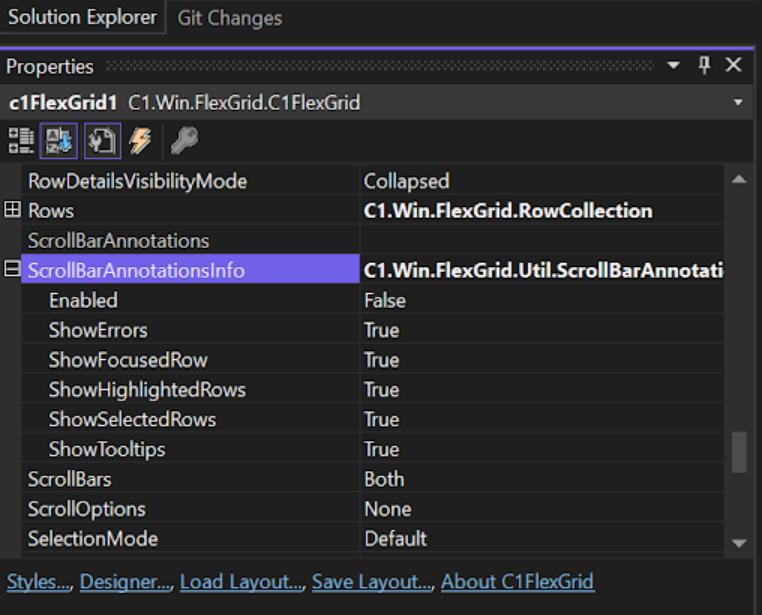
All features of scrollbar annotation can be enabled through properties, by setting them in the Properties window as True.
Annotation
When Scrollbar annotation is enabled, annotation markers appear on the scrollbar to represent rows that meet certain criteria.
public bool Enabled { get; set; }ShowTooltips
Enables tooltip displaying row’s information when the mouse hovers over an annotation marker.
public bool ShowTooltips { get; set; }ShowFocusedRow
Tracks user’s current focus position and displays it on the scrollbar.
public bool ShowFocusedRow { get; set; }ShowSelectedRows
Highlights the positions of selected rows along the scrollbar.
public bool ShowSelectedRows { get; set; }ShowErrors
Locates invalid entries within large datasets.
public bool ShowErrors { get; set; }ShowHighlightedRows
Displays markers for rows that match search results or other custom highlighting criteria.
public bool ShowHighlightedRows { get; set; }ScrollToScrollBarAnnotation
The ScrollToScrollBarAnnotation method allows developers to programmatically scroll the FlexGrid view to a specific annotation marker. This is useful for guided navigation, such as jumping to the next error or search result.
The method accepts a ScrollBarAnnotation object as a parameter.
private void Button_Click(object sender, EventArgs e)
{
    ScrollBarAnnotation firstAnnotation =
        c1FlexGrid1.ScrollBarAnnotations.First();

    c1FlexGrid1.ScrollToScrollBarAnnotation(firstAnnotation);
}
Customize Scrollbar Annotations
Users can customize scrollbar annotation when the grid raises the ScrollBarAnnotationsUpdated event. The event arguments provide access to the full list of annotations, allowing users to append new ones or modify existing markers. The following code demonstrates customizing Scrollbar annotation.
/// <summary>
/// Fires after the scrollbar annotations are updated.
/// </summary>
/// <example>
/// Custom annotations can be added to the list of all grid annotations in the
/// event arguments <see cref="ScrollBarAnnotationsUpdatedArgs"/>.
/// </example>
public enum CustomAnnotationType
{
    Custom1,
    Custom2
}

public class CustomAnnotation : ScrollBarAnnotation
{
    public CustomAnnotationType Type { get; }

    public CustomAnnotation(
        CustomAnnotationType type,
        string text,
        double position,
        Color? color = null,
        HorizontalAlignment alignment = HorizontalAlignment.Center,
        int width = 100,
        int height = 2)
        : base(text, position, color, alignment, width, height)
    {
        Type = type;
    }
}

private void C1FlexGrid1_ScrollBarAnnotationsUpdated(object sender, ScrollBarAnnotationsUpdatedArgs e)
{
    ScrollBarAnnotation customAnnotation =
        e.Annotations.FirstOrDefault(x => x is CustomAnnotation ca && ca.Type == CustomAnnotationType.Custom1);

    var text = $"Custom annotation. Time: {DateTime.Now.ToLongTimeString()}";

    // Important Note:
    // If your custom annotations are not updating or appearing correctly,
    // you may need to force the grid to re-render its annotations after modifying them.
    // This ensures that the latest annotation changes are properly applied to the UI.
    // You can refresh annotations by temporarily disabling and re-enabling the feature, as shown below:

    if (customAnnotation == null)
    {
        e.Annotations.Add(new CustomAnnotation(CustomAnnotationType.Custom1,
            text, 11, Color.Green, width: 70, height: 8));

        e.Annotations.Add(new CustomAnnotation(CustomAnnotationType.Custom2,
            text, 55, Color.YellowGreen, width: 70, height: -1));
    }
    else
    {
        customAnnotation.Text = text;
    }
}
In case updates are not reflected, users can force the grid to re-render its annotations after modifying them. The following code demonstrates how to refresh annotations by temporarily disabling and re-enabling the feature.
if (_flexGrid.ScrollBarAnnotationsInfo.Enabled)
{
    // Suspend layout updates to prevent unnecessary redraws or flickering
    _flexGrid.SuspendLayout();

    // Temporarily disable and re-enable the feature to force a refresh
    _flexGrid.ScrollBarAnnotationsInfo.Enabled = false;
    _flexGrid.ScrollBarAnnotationsInfo.Enabled = true;

    // Resume layout updates and trigger a redraw
    _flexGrid.ResumeLayout();
}