


Header
Column header refers to the fixed row/s on the top of the grid which contains a caption string, sort glyph etc. In FlexGrid, by default, the top row with zero index is allocated for the column header.
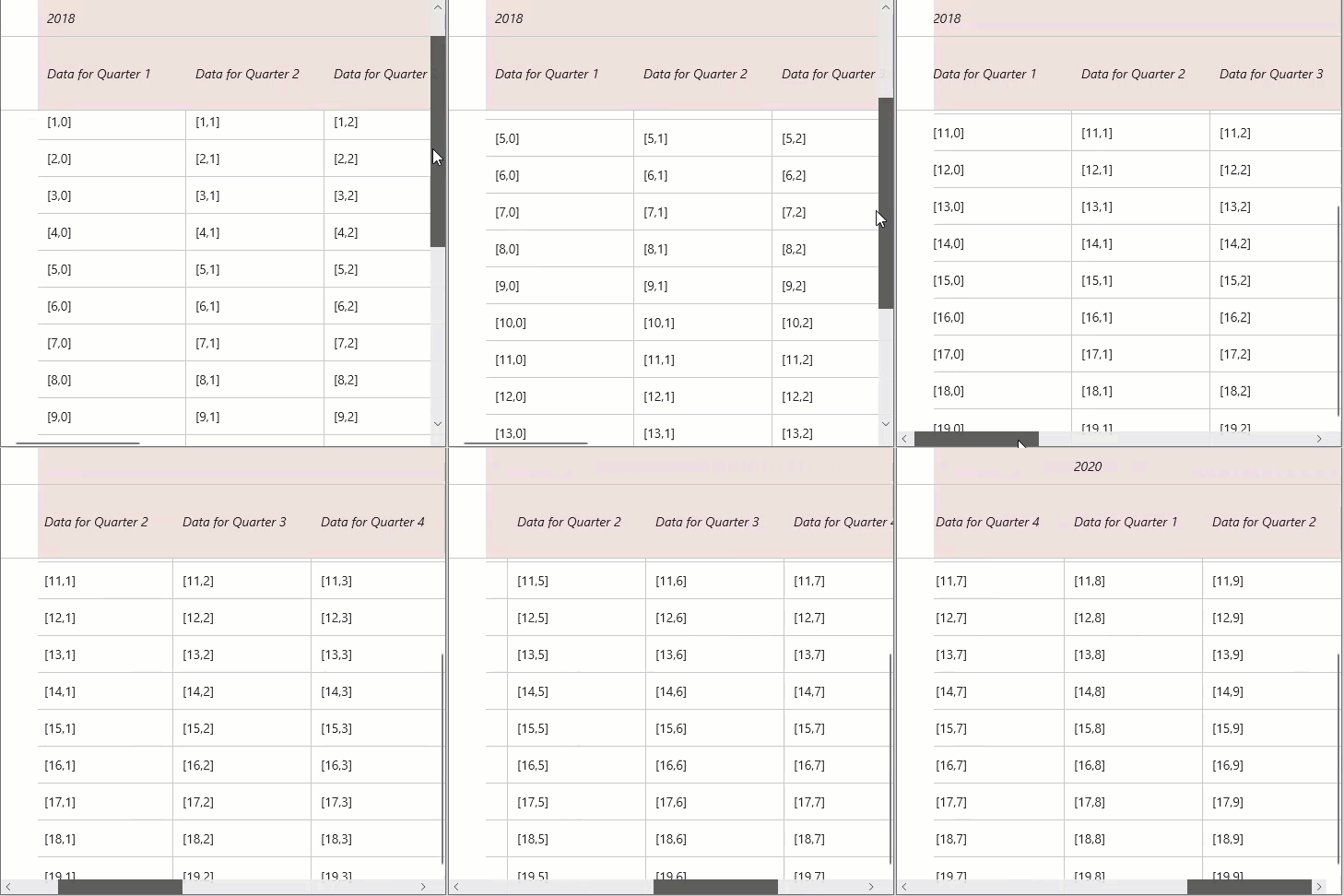
Set column header and header text
WinUI FlexGrid control lets you set column header using the ColumnHeaders property of FlexGrid class. It helps to add column headers in unbound grid. Here, we have added 2 rows in column header and set text in cells of column header.
The code snippet below lets you specify the column header and set the header text:
// set unbound column headers
var ch = flexGrid1.ColumnHeaders;
ch.Rows.Clear();
ch.Rows.Add(new GridRow());
ch.Rows.Add(new GridRow());
for (int c = 0; c < ch.Columns.Count; c++)
// set column header text
{
    ch[0, c] = 2018 + c / 4; // year
    ch[1, c] = string.Format("Data for Quarter {0}", c % 4 + 1); // quarter
}
Merge column header
FlexGrid provides the AllowMerging property in GridRow class for Row object which specifies whether it is allowed to merge cells in a particular row (in this case, the header row) or not.
Use the code below to merge column headers in FlexGrid.
// allow merging
flexGrid1.AllowMerging = GridAllowMerging.All;
// allow merging of the first column header row
flexGrid1.ColumnHeaders.Rows[0].AllowMerging = true;
Wrap column header text
To wrap the text in column header, access the particular row and set its WordWrap property of GridRow class to true. Note that to view the wrapped text properly, you need to adjust the row height using the Height property of GridRow class.
Use the code below to wrap header text of the FlexGrid columns.
// Wrap column header text
flexGrid1.ColumnHeaders.Rows[1].WordWrap = true;
flexGrid1.ColumnHeaders.Rows[1].Height = new GridLength(80);
Style column header
To style the column header, you can access the ColumnHeaderBackground property of the FlexGrid class and set a solid color in the background using the SolidColorBrush method, and further, use the ColumnHeaderFontStyle to set a particular font style.
Some of other properties that can be used to style the column headers are ColumnHeaderFontFamily, ColumnHeaderFontSize, ColumnHeaderFontStyle, ColumnHeaderFontWeight, ColumnHeaderForeground etc.
Customize column header of the FlexGrid control using the code below.
// Style column header
SolidColorBrush colHeaderBrush = new SolidColorBrush(Windows.UI.Color.FromArgb(34, 124, 9, 9));
flexGrid1.ColumnHeaderBackground = colHeaderBrush;
flexGrid1.ColumnHeaderFontStyle = Windows.UI.Text.FontStyle.Italic;
Column Header Menu
Column Header Menu in WinUI lets users configure the visibility of the column menu options for the whole FlexGrid or individual column.
The ColumnOptionsLoading and ColumnFilterLoading events (as well as OptionsLoading and FilterLoading) allow developers to customize the options or filter menus of any column in the FlexGrid.
Property | Type | Values | Description | Scope |
|---|---|---|---|---|
|
|
|
| For grid-level: |
|
|
| For column-level: |
Column Header Menu Events
Property | Type | Description |
|---|---|---|
|
| Triggered when the column options menu is opened and loading. |
|
| Triggered when filters are loading in the header menu. |
|
| Triggered when the options menu for a specific column is loading. |
|
| Triggered when filters for a specific column are loading. |
Configure Header Menu Item
There are default header menu items that can be configured. This section demonstrates how to access and configure Column Header Menu:
// Show filter menu item
grid.AllowFiltering = true;
 // Allow Grouping
grid.AllowGrouping = true;
// Show Sort menu items
grid.AllowSorting = true;
// Show Resize menu item
grid.AllowResizing = GridAllowResizing.Both;
Quick Start
To get started with the FlexGrid, the configuration required are:
Adding Packages: Download the following packages from the NuGet Package manager
C1.WinUI.GridBogus: Faker used to populate the grid with dummy data
Imports
In the
MainWindow.xamlfile add
  xmlns:c1="using:C1.WinUI.Grid"
  xmlns:core="using:C1.WinUI.Core"
Using the Component
In the example below, The grid’s ColumnOptionsMenuVisibility is set to Visibl. Each column has their own OptionsMenuVisibility configured except for City column. City column inherits from the FlexGrid which is Visible.
MainWindow.xaml
<?xml version="1.0" encoding="utf-8"?>
<Window
    x:Class="WinUiApp1.MainWindow"
    xmlns="http://schemas.microsoft.com/winfx/2006/xaml/presentation"
    xmlns:x="http://schemas.microsoft.com/winfx/2006/xaml"
    xmlns:local="using:WinUiApp1"
    xmlns:d="http://schemas.microsoft.com/expression/blend/2008"
    xmlns:mc="http://schemas.openxmlformats.org/markup-compatibility/2006"
    xmlns:c1="using:C1.WinUI.Grid"
    xmlns:core="using:C1.WinUI.Core"
    mc:Ignorable="d"
    Title="WinUiApp1">
    <Window.SystemBackdrop>
        <MicaBackdrop />
    </Window.SystemBackdrop>
    <Grid>
        <Grid.Resources>
            <Style x:Key="PopupStyle" TargetType="core:C1Border">
                <Setter Property="Background" Value="White"/>
                <Setter Property="Foreground" Value="Black"/>
                <Setter Property="BorderBrush" Value="Red"/>
                <Setter Property="Height" Value="20"/>
                <Setter Property="BorderThickness" Value="1"/>
                <Setter Property="CornerRadius" Value="3"/>
                <Setter Property="Opacity" Value="1.0"/>
            </Style>
        </Grid.Resources>
        <c1:FlexGrid
            x:Name="grid"
            AutoGenerateColumns="False"
            ColumnOptionsMenuVisibility="Visible"
            PopupStyle="{StaticResource PopupStyle}"
            >
            <c1:FlexGrid.Columns>
                <c1:GridColumn x:Name="firstNameCol" Binding="FirstName" MinWidth="110" Width="*" OptionsMenuVisibility="Visible"/>
                <c1:GridColumn x:Name="lastNameCol" Binding="LastName" MinWidth="110" Width="*" OptionsMenuVisibility="Collapsed"/>
                <c1:GridColumn x:Name="stateCol" Binding="State" MinWidth="110" Width="*" OptionsMenuVisibility="MouseOver"/>
                <c1:GridColumn x:Name="cityCol" Binding="City" MinWidth="110" Width="*"/>
            </c1:FlexGrid.Columns>
        </c1:FlexGrid>
    </Grid>
</Window>
MainWindow.xaml.cs
FlexGrid eventshave been attached.First column (FirstName in this example) has it’s event attached.
using Bogus;
using Microsoft.UI.Xaml;
using System.Collections.ObjectModel;
using System.Diagnostics;
namespace WinUiApp1
{
    /// <summary>
    /// An empty window that can be used on its own or navigated to within a Frame.
    /// </summary>
    public sealed partial class MainWindow : Window
    {
        ObservableCollection<Person> Items = [.. new PersonFaker().Generate(100)];
        public MainWindow()
        {
            InitializeComponent();
            grid.ItemsSource = Items;
            grid.ColumnOptionsLoading += GridOnColumnOptionsLoading;
            grid.ColumnFilterLoading += GridColumnFilterLoading;
            firstNameCol.FilterLoading += ColOnFilterLoading;
            firstNameCol.OptionsLoading += ColOnColumnOptionsLoading;
        }
        public void GridOnColumnOptionsLoading(object? sender, C1.WinUI.Grid.GridColumnOptionsLoadingEventArgs e)
        {
            Debug.WriteLine("Grid: Loading Column Options");
        }
        public void ColOnColumnOptionsLoading(object? sender, C1.WinUI.Grid.GridColumnOptionsLoadingEventArgs e)
        {
            Debug.WriteLine("Column: Loading Column Options");
        }
        public void ColOnFilterLoading(object? sender, C1.WinUI.Grid.GridColumnFilterLoadingEventArgs e)
        {
            Debug.WriteLine("Column: Loading Column Filters");
        }
        public void GridColumnFilterLoading(object? sender, C1.WinUI.Grid.GridColumnFilterLoadingEventArgs e)
        {
            Debug.WriteLine("Grid: Loading Column Filters");
        }
    }
    public class Person
    {
        public string FirstName { get; set; } = string.Empty;
        public string LastName { get; set; } = string.Empty;
        public string State { get; set; } = string.Empty;
        public string City { get; set; } = string.Empty;
    }
    public class PersonFaker : Faker<Person>
    {
        public PersonFaker()
        {
            RuleFor(d => d.FirstName, f => f.Name.FirstName());
            RuleFor(d => d.LastName, f => f.Name.LastName());
            RuleFor(d => d.State, f => f.Person.Address.State.ToString());
            RuleFor(d => d.City, f => f.Person.Address.City);
        }
    }
}
Style column header menu (Popup Style)
MainWindow.xaml
PopupStyle can be used to customize the style for the options menu. It allows to customize the appearance of the popup to match any application’s theme. Below is an example:
<Style x:Key="PopupStyle" TargetType="core:C1Border">
    <Setter Property="Background" Value="Black"/>
    <Setter Property="Foreground" Value="White"/>
    <Setter Property="BorderBrush" Value="White"/>
    <Setter Property="Height" Value="20"/>
    <Setter Property="BorderThickness" Value="1"/>
    <Setter Property="CornerRadius" Value="3"/>
    <Setter Property="Opacity" Value="1.0"/>
</Style>