


Adding Items
There are several ways to add items to the C1ComboBox control:
In XAML
To add items to the C1ComboBox control, add the following XAML markup between the <c1:C1ComboBox> and </c1:C1ComboBox> tags:
<c1:C1ComboBoxItem Height="25" Content="C1ComboBoxItem"/>
<c1:C1ComboBoxItem Height="25" Content="C1ComboBoxItem"/>
<c1:C1ComboBoxItem Height="25" Content="C1ComboBoxItem"/>
<c1:C1ComboBoxItem Height="25" Content="C1ComboBoxItem"/>
Run the program.
Click the drop-down arrow and observe that four items appear in the drop-down list.
In Code - WPF
Add x:Name="C1ComboBox1" to the <c1:C1ComboBox> tag so that the object will have a unique identifier for you to call in code.
Open the MainPage.xaml.cs or the MainWindow.xaml.cs page.
Import the following namespace into your project in Code View:
using C1.WPF;Imports C1.WPFAdd the following code beneath the InitializeComponent() method:
c1ComboBox1.Items.Add(new C1ComboBoxItem() { Content = "C1ComboBoxItem1" });
c1ComboBox1.Items.Add(new C1ComboBoxItem() { Content = "C1ComboBoxItem2" });
c1ComboBox1.Items.Add(new C1ComboBoxItem() { Content = "C1ComboBoxItem3" });
c1ComboBox1.Items.Add(new C1ComboBoxItem() { Content = "C1ComboBoxItem4" });C1ComboBox1.Items.Add(New C1ComboBoxItem() With {.Content = "C1ComboBoxItem1"})
C1ComboBox1.Items.Add(New C1ComboBoxItem() With {.Content = "C1ComboBoxItem2"})
C1ComboBox1.Items.Add(New C1ComboBoxItem() With {.Content = "C1ComboBoxItem3"})
C1ComboBox1.Items.Add(New C1ComboBoxItem() With {.Content = "C1ComboBoxItem4"})Run the program.
In Code - Silverlight
Add x:Name="C1ComboBox1" to the <c1:C1ComboBox> tag so that the object will have a unique identifier for you to call in code.
Open the MainPage.xaml.cs or the MainWindow.xaml.cs page.
Import the following namespace into your project in Code View:
Using C1.Silverlight;Imports C1.SilverlightAdd the following code beneath the InitializeComponent() method:
C1ComboBox1.Items.Add(new C1ComboBoxItem() { Content = "C1ComboBoxItem1" });
C1ComboBox1.Items.Add(new C1ComboBoxItem() { Content = "C1ComboBoxItem2" });
C1ComboBox1.Items.Add(new C1ComboBoxItem() { Content = "C1ComboBoxItem3" });
C1ComboBox1.Items.Add(new C1ComboBoxItem() { Content = "C1ComboBoxItem4" });C1ComboBox1.Items.Add(New C1ComboBoxItem() With {.Content = "C1ComboBoxItem1"})
C1ComboBox1.Items.Add(New C1ComboBoxItem() With {.Content = "C1ComboBoxItem2"})
C1ComboBox1.Items.Add(New C1ComboBoxItem() With {.Content = "C1ComboBoxItem3"})
C1ComboBox1.Items.Add(New C1ComboBoxItem() With {.Content = "C1ComboBoxItem4"})Run the program.
From a Collection
Complete the following steps:
Add x:Name="C1ComboBox1" to the <c1:C1ComboBox> tag so that the object will have a unique identifier for you to call in code.
Open the MainWindow.Xaml.cs page or the MainPage.xaml.cs page (or the .vb page if using Visual Basic).
Import the following namespace into the project:
Imports System.Collections.Genericusing System.Collections.Generic;Create your list by adding the following code beneath the InitializeComponent() method:
Dim dropDownList As New List(Of String)()
dropDownList.Add("C1ComboBoxItem1")
dropDownList.Add("C1ComboBoxItem2")
dropDownList.Add("C1ComboBoxItem3")
dropDownList.Add("C1ComboBoxItem4")List<string> dropDownList = new List<string>();
dropDownList.Add("C1ComboBoxItem1");
dropDownList.Add("C1ComboBoxItem2");
dropDownList.Add("C1ComboBoxItem3");
dropDownList.Add("C1ComboBoxItem4");Add the list to the combo box by setting the ItemsSource property:
C1ComboBox1.ItemsSource = dropDownListc1ComboBox1.ItemsSource = dropDownList;Run the program.
In the Designer
Complete the following steps:
In the Properties window, click the Items ellipsis button
 to open the Collection Editor: Items dialog box.
Collection Editor: Items
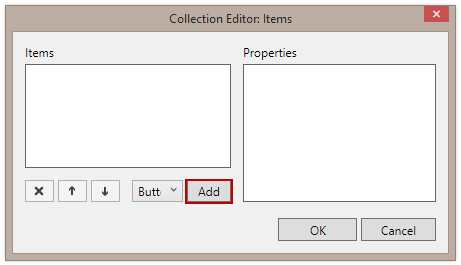
Click Add to add a C1ComboBoxItem to the C1ComboBox control.