Step 2 of 4: Adding Data to the Chart
In the last step, you added the C1Chart control to the Window. In this step, you will add a DataSeries object and data for it. There are two ways to add a DataSeries: in XAML markup or in code. The following tabs contain directions for adding chart data either way. Select the appropriate tab and complete the steps:
In XAML
Set the ChartType by editing your c1chart:C1Chart tag to resemble the following:
<c1chart:C1Chart Name="c1Chart1" ChartType="Bar" Margin="0,0,8,8" MinHeight="160" MinWidth="240" Content="C1Chart">
</c1chart:C1Chart>
In XAML, you add your data by using the C1Chart Data object:
 <c1chart:C1Chart Name="c1Chart1" ChartType="Bar" Margin="0,0,8,8" MinHeight="160" MinWidth="240" Content="C1Chart">
 <c1chart:C1Chart.Data>
                 <c1chart:ChartData>
                     <c1chart:ChartData.ItemNames>
                         <x:Array Type="{x:Type System:String}">
                             <System:String>Hand Mixer</System:String>
                             <System:String>Stand Mixer</System:String>
                             <System:String>Can Opener</System:String>
                             <System:String>Toaster</System:String>
                             <System:String>Blender</System:String>
                             <System:String>Food Processor</System:String>
                             <System:String>Slow Cooker</System:String>
                             <System:String>Microwave</System:String>
                         </x:Array>
                     </c1chart:ChartData.ItemNames>
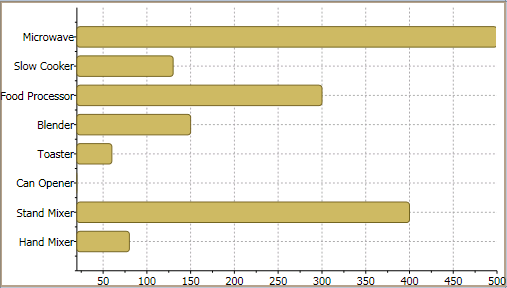
                     <c1chart:DataSeries Values="80 400 20 60 150 300 130 500" AxisX="Price" AxisY="Kitchen Electronics" Label="Price"/>
                 </c1chart:ChartData>
 </c1chart:C1Chart.Data>
 </c1chart:C1Chart>
In this step we use one DataSeries that has eight X-values. We added ItemNames of the type string to the ChartData to represent the string name for each data value. We used an array of string names for the ItemNames since a few of the item names included spaces. We were able to use the System:String namespace since we declared the namespace for it in Step 1 of 4: Adding Chart to Your Project.
In code
Right-click the MainPage.xaml file and select Code View.
Add the C1.Silverlight.C1Chart namespace directive
Imports C1.Silverlight.Chartusing C1.Silverlight.Chart;Add the following code in the constructor Window1 class to create the Bar chart:
 ' Clear previous data
 c1Chart1.Data.Children.Clear()
 ' Add Data
 Dim ProductNames As String() = {"Hand Mixer", "Stand Mixer", "Can Opener", "Toaster", "Blender", "Food Processor", "Slow Cooker", "Microwave"}
 Dim PriceX As Integer() = {80, 400, 20, 60, 150, 300, 130, 500}
 ' create single series for product price
 Dim ds1 As New DataSeries()
 ds1.Label = "Price X"
 'set price data
 ds1.ValuesSource = PriceX
 ' add series to the chart
 c1Chart1.Data.Children.Add(ds1)
 ' add item names
 c1Chart1.Data.ItemNames = ProductNames
 ' Set chart type
 c1Chart1.ChartType = ChartType.Bar
// Clear previous data
c1Chart1.Data.Children.Clear();
// Add Data
string[] ProductNames = { "Hand Mixer", "Stand Mixer", "Can Opener", "Toaster", "Blender", "Food Processor", "Slow Cooker", "Microwave" };
int[] PriceX = { 80, 400, 20, 60, 150, 300, 130, 500 };
// create single series for product price
DataSeries ds1 = new DataSeries();
ds1.Label = "Price X";
//set price data
ds1.ValuesSource = PriceX;
// add series to the chart
c1Chart1.Data.Children.Add(ds1);
// add item names
c1Chart1.Data.ItemNames = ProductNames;
// Set chart type
c1Chart1.ChartType = ChartType.Bar; What You've Accomplished
You have successfully added data to C1Chart so when you run your application the string values appear on the Y-axis like the following: