


Integration with Grids
InputPanel supports seamless integration with grid controls including MS DataGrid and ComponentOne's FlexGrid and DataGrid. These grid controls come with a baked-in data template, RowDetailsTemplate, which can be used to embed UI elements within a collapsible section for each row. Using this template, the InputPanel can be embedded to display the details of each row in a compact layout. You can interact with the template in XAML view, and set its binding in code to implement integration. In this section, we discuss how InputPanel can be integrated in FlexGrid control.
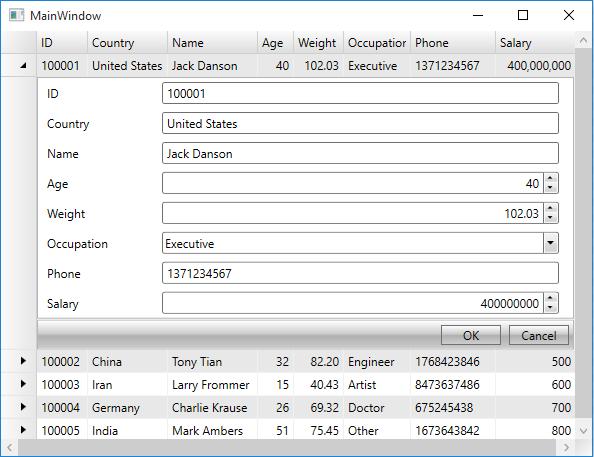
The following image shows an InputPanel integrated with a FlexGrid (C1FlexGrid).
To integrate InputPanel with ComponentOne FlexGrid
Step 1: Set up the application
Create a WPF application and add the InputPanel control onto the designer.
Add C1.WPF.DataGrid dll in the References folder of your application.
Initialize the RowDetailsTemplate of the grid in XAML view and set binding property as illustrated.
<c1:C1FlexGrid Name="flexgrid">
    <c1:C1FlexGrid.RowDetailsTemplate>
        <DataTemplate>
            <c1:C1InputPanel CurrentItem="{Binding .}"/>
        </DataTemplate>
    </c1:C1FlexGrid.RowDetailsTemplate>
</c1:C1FlexGrid>
Step 2: Create a data source
Create a Customer class to add records into the InputPanel, and an enumeration to accept values for Occupation field.
Public Class Customer
    Public Property ID() As String
        Get
            Return m_ID
        End Get
        Set
            m_ID = Value
        End Set
    End Property
    Private m_ID As String
    Public Property Country() As String
        Get
            Return m_Country
        End Get
        Set
            m_Country = Value
        End Set
    End Property
    Private m_Country As String
    Public Property Name() As String
        Get
            Return m_Name
        End Get
        Set
            m_Name = Value
        End Set
    End Property
    Private m_Name As String
    Public Property Age() As Integer
        Get
            Return m_Age
        End Get
        Set
            m_Age = Value
        End Set
    End Property
    Private m_Age As Integer
    Public Property Weight() As Double
        Get
            Return m_Weight
        End Get
        Set
            m_Weight = Value
        End Set
    End Property
    Private m_Weight As Double
    Public Property Occupation() As Occupation
        Get
            Return m_Occupation
        End Get
        Set
            m_Occupation = Value
        End Set
    End Property
    Private m_Occupation As Occupation
    Public Property Phone() As String
        Get
            Return m_Phone
        End Get
        Set
            m_Phone = Value
        End Set
    End Property
    Private m_Phone As String
    Public Property Salary() As Integer
        Get
            Return m_Salary
        End Get
        Set
            m_Salary = Value
        End Set
    End Property
    Private m_Salary As Integer
    Public Sub New(id As String, country As String, name As String,
                   age As Integer, weight As Double, occupation As Occupation,
        phone As String, salary As Integer)
        Me.ID = id
        Me.Country = country
        Me.Name = name
        Me.Age = age
        Me.Weight = weight
        Me.Occupation = occupation
        Me.Phone = phone
        Me.Salary = salary
    End Sub
End Class
Public Enum Occupation
    Doctor
    Artist
    Educator
    Engineer
    Executive
    Other
End Enum
public class Customer { public string ID { get; set; } public string Country { get; set; } public string Name { get; set; } public int Age { get; set; } public double Weight { get; set; } public Occupation Occupation { get; set; } public string Phone { get; set; } public int Salary { get; set; } public Customer(string id, string country, string name, int age, double weight, Occupation occupation, string phone, int salary) { this.ID = id; this.Country = country; this.Name = name; this.Age = age; this.Weight = weight; this.Occupation = occupation; this.Phone = phone; this.Salary = salary; } } public enum Occupation { Doctor, Artist, Educator, Engineer, Executive, Other }Switch to the MainWindow.xaml.cs file and add the following code to create a collection of records in the class constructor.
Dim data As New List(Of Customer)()
data.Add(New Customer("100001", "United States", "Jack Danson", 40, 102.03, Occupation.Executive,
"1371234567", 400000000))
data.Add(New Customer("100002", "China", "Tony Tian", 32, 82.2, Occupation.Engineer,
"1768423846", 500))
data.Add(New Customer("100003", "Iran", "Larry Frommer", 15, 40.432, Occupation.Artist,
"8473637486", 600))
data.Add(New Customer("100004", "Germany", "Charlie Krause", 26, 69.32, Occupation.Doctor,
"675245438", 700))
data.Add(New Customer("100005", "India", "Mark Ambers", 51, 75.45, Occupation.Other,
"1673643842", 800))
List<Customer> data = new List<Customer>(); data.Add(new Customer("100001", "United States", "Jack Danson", 40, 102.03, Occupation.Executive, "1371234567", 400000000)); data.Add(new Customer("100002", "China", "Tony Tian", 32, 82.2, Occupation.Engineer, "1768423846", 500)); data.Add(new Customer("100003", "Iran", "Larry Frommer", 15, 40.432, Occupation.Artist, "8473637486", 600)); data.Add(new Customer("100004", "Germany", "Charlie Krause", 26, 69.32, Occupation.Doctor, "675245438", 700)); data.Add(new Customer("100005", "India", "Mark Ambers", 51, 75.45, Occupation.Other, "1673643842", 800));
Step 3: Integrate InputPanel with FlexGrid
To integrate the InputPanel with FlexGrid, set the ItemsSource property of the grid to the collection in the class constructor.
flexgrid.ItemsSource = dataflexgrid.ItemsSource = data.ToList<Customer>();
Similarly, you can integrate InputPanel with MS DataGrid and ComponentOne DataGrid using RowDetailTemplate property.