- Getting Started with WPF Edition
- End-User License Agreement
- Free and Open Source Software (FOSS) License
- Licensing Information
- Technical Support
- Redistributable Files
- About this Documentation
- Theming
- XAML and XAML Namespaces
- Creating a Microsoft Blend Project
- Creating a WPF Project in Visual Studio
- Adding NuGet Packages to your App
- Adding the WPF Edition Components
- Localization
- UI Automation and Accessibility
- VS Suggested Actions
- Section 508 Compliance
Custom Localization
Custom localization in WPF lets developers use their own translations for C1 libraries without changing code or contacting C1 Support. It embeds user resource files into the application, allowing full control over text display and overriding default translations.
Key features include:
Full Control: Manage and maintain translations internally without relying on external updates from C1
Support for New Languages: Localize user app into languages that C1 does not officially support
Improved User Experience: Translate to fit user’s brand tone or region-specific terminology
No Code Required: Use correctly named .resx files as embedded resources instead of codes
Seamless Integration: The ResourceBase<R> class in C1.WPF.Core automatically prioritizes user’s resources at runtime, and falls back to default translations when needed. Most WPF resource classes now inherit from it, except:
C1Scheduler
C1GanttView
FlexChart
Barcode
Document
FlexReport
Add New Language
This section demonstrates how users can add languages not supported by C1 localization using FlexGrid as a example.
Create Sample FlexGrid
Create a FlexGrid following the step in this guide: Quick Start
Copy the following code into your application to include the sample data referenced throughout this guide.
flexGrid.ItemsSource = new[]
{
     new { ID = 1, Name = "Anna", City = "Budapest" },
     new { ID = 2, Name = "Béla", City = "Győr" },
     new { ID = 3, Name = "Csilla", City = "Debrecen" }
 };
Locate Default Resource Files
Default resources files (in this case, of FlexGrid) can be found in:
C1ControlPanel: C:\Program Files (x86)\MESCIUS\ComponentOne\WPF\Resources
NuGet: "C:\Users\%userprofile%\.nuget\packages\c1.wpf.grid\9.0.20252.1167\lib\net6.0-windows7.0
If downloaded through NuGet, the C1.WPF.Grid.dll file containing resources files is used. Expand the Resources section within the DLL, then extract and save the files following the original folder structure.
Example of the resource files:
Resources.resx        (default English)
Resources.ja.resx     (Japanese)
Resources.zh-Hans.resx (Simplified Chinese)
Create a New Translation File
In Solution Explorer, recreate the folder structure that matches the ComponentOne assembly where the resource resides. For C1FlexGrid, this structure is typically:
[Project Root]C1.``<span data-testid="definition-highlighter" class="_5pioz8co _189e1dm9 _1il9buyh _19lc184f _d0altlke" style="border-image: linear-gradient(90deg, rgb(0, 101, 255), rgb(191, 99, 243), rgb(245, 230, 168)) 0 0 100% / 1 / 0 stretch; border-width: 0px 0px 2px; border-bottom-style: solid; --_11qfq0e: solid;">WPF</span>``.Grid(Subfolder)Resources(Subfolder containing the .resx files)
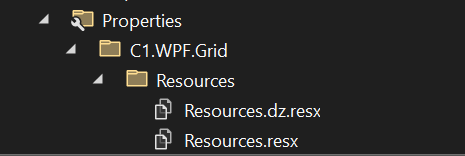
Drag and drop the default English (.resx) file from C1 libraries to Resources and change the culture suffix to match the culture
Select each .resx file and set its Build Action to EmbeddedResource
Translate all strings into your target language (e.g. Dzongkha) as show in the image below.
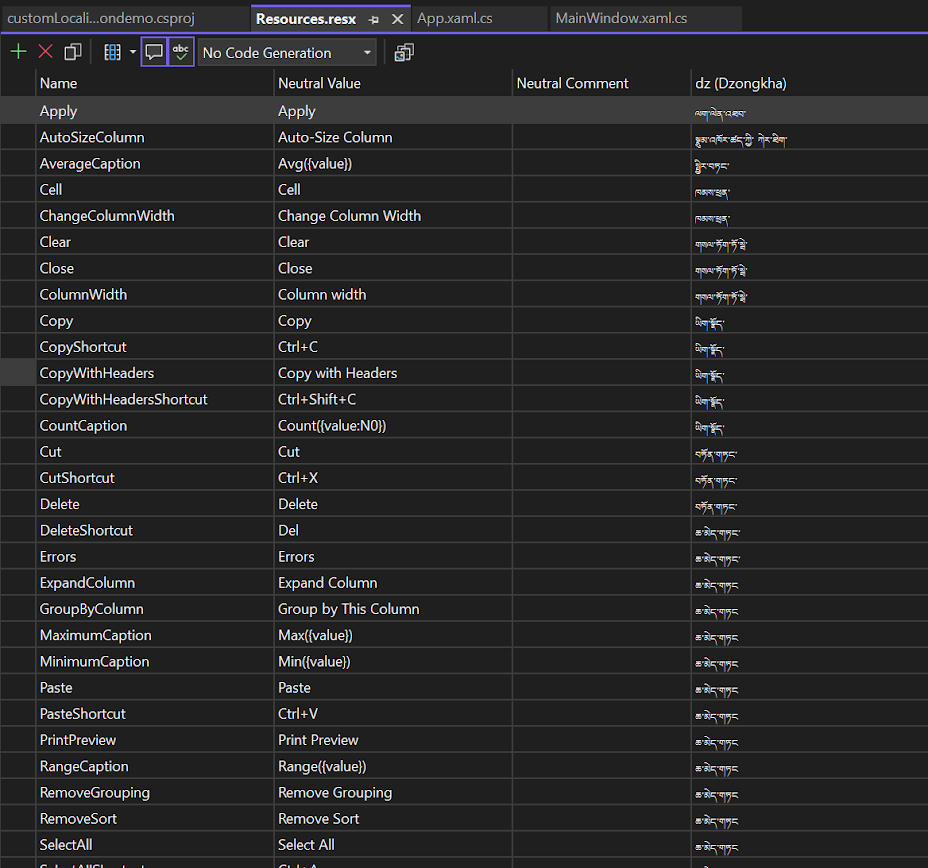
Maintain the same folder structure as the default C1 resource files. Alternatively, if all files are kept in a single folder, rename the file to include the full namespace, e.g.:
C1.WPF.Grid.Resources.Resources.hu.resx
Set Culture of Application
In App.xaml.cs, set the application’s culture to Dzongkha using the following code.
 var culture = new CultureInfo("dz-DZ");
 Thread.CurrentThread.CurrentCulture = culture;
 Thread.CurrentThread.CurrentUICulture = culture;
 InitializeComponent();
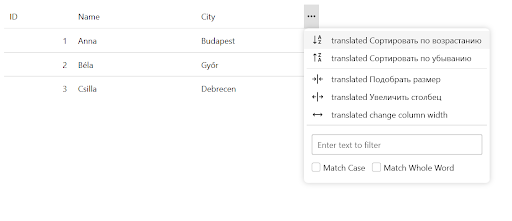
Build and Verify
The end result will use the new language added by user, in this case, Dzongkha.
Override existing translation
This section demonstrates how users can edit translations of language supported by C1 localization using FlexGrid and Russian (ru) as a example.
Add Target Language
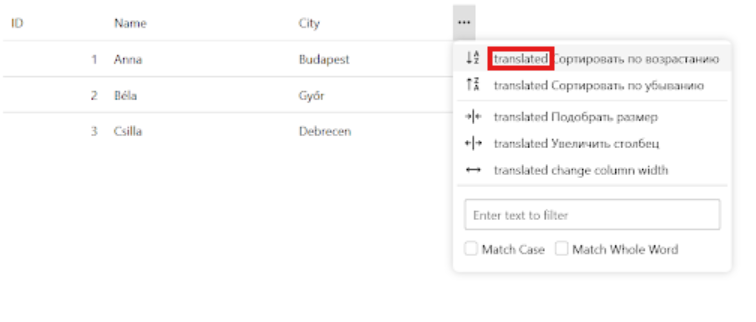
In Solution Explorer, create a file path imitating the image below:
Drag and drop the Russian (.resx) file from C1 libraries
Select the .resx file and set its Build Action to EmbeddedResource
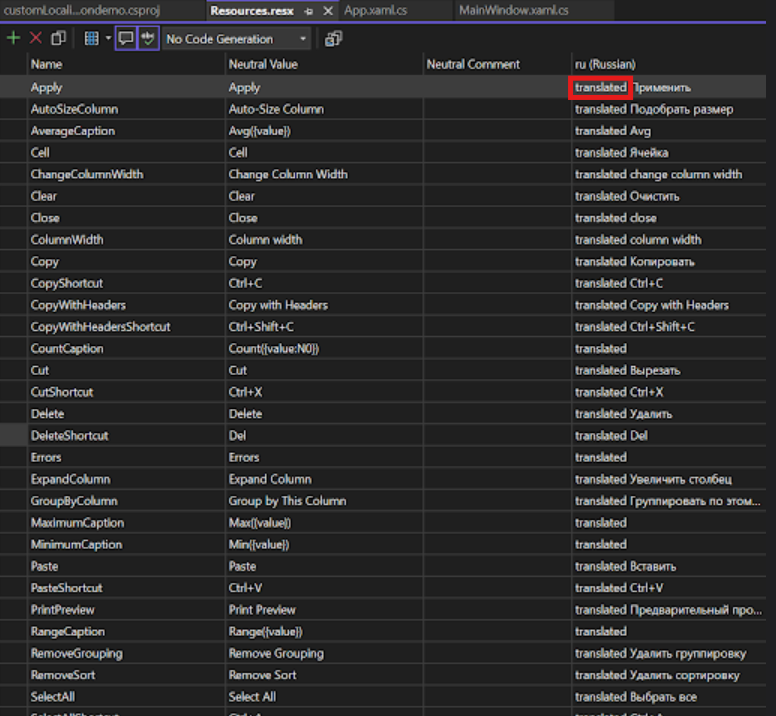
Update Translation
In the .resx file, adjust any translations that requires improvement.
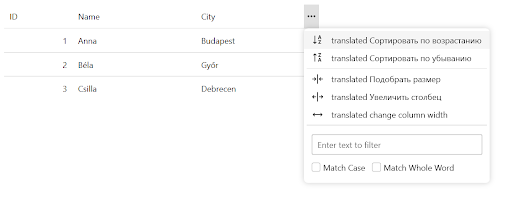
Build and Verify
The end result will use the updated language adjusted by user.