Drag and Drop Nodes
You can drag-and-drop C1TreeViewItems on nodes, in between nodes, or from one tree to another tree when the AllowDragDrop property is set to True.
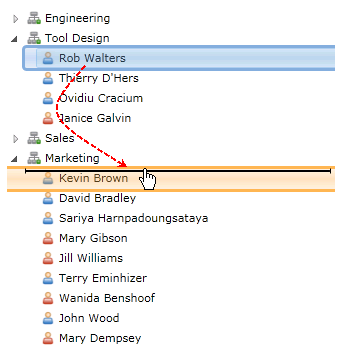
The following image shows a C1TreeViewItem being dragged from one C1TreeView to another C1TreeView. An arrow or vertical line can be used as a visual cue to show you where the C1TreeViewItem is going to be dropped when either the DragDropArrowMarker or DragDropLineMarker properties are applied.
To set the AllowDragDrop property to True, use the following code:
C1TreeView.AllowDragDrop = TrueC1TreeView.AllowDragDrop = true;To enable visual drag-and-drop indicators you can set the DragDropArrowMarker and DragDropLineMarker properties.
Customize Source Marker and Target Marker
ComponentOne TreeView allows users to customize the appearance of the source marker and target marker to match their application's design and usability requirements. The appearance of the source marker and the target marker can be customized using two properties:
DragSourceStyle
DragTargetStyle
Default
By default, the source marker appears as a small rectangular silhouette representing the element being dragged, while the target marker is displayed as a simple line or highlight indicating the intended drop position. Both markers have a fixed default size of one item and a fixed color. The default appearance is automatically applied if custom styles are not defined.
Customize Source Marker
Customize the visual appearance (size, color, border, shape, and more) of the source marker using DragSourceStyle. The following code snippet demonstrates how to apply a custom style.
<Style x:Key="CustomSourceMarkerStyle" TargetType="Border">
    <Setter Property="Background" Value="#88808080"/>
    <Setter Property="BorderBrush" Value="#AAAAAA"/>
    <Setter Property="Height" Value="20"/>
    <Setter Property="BorderThickness" Value="1"/>
    <Setter Property="CornerRadius" Value="3"/>
</Style>
Customize Target Marker
Customize the visual appearance (size, color, border, shape, and more) of the target marker using DragTargetStyle. The following code snippet demonstrates how to apply a custom style.
<Style x:Key="CustomTargetMarkerStyle" TargetType="Border">
    <Setter Property="Background" Value="#88808080"/>
    <Setter Property="BorderBrush" Value="#3d3dFF"/>
    <Setter Property="Height" Value="20"/>
    <Setter Property="BorderThickness" Value="1"/>
    <Setter Property="CornerRadius" Value="3"/>
</Style>
Build and Verify
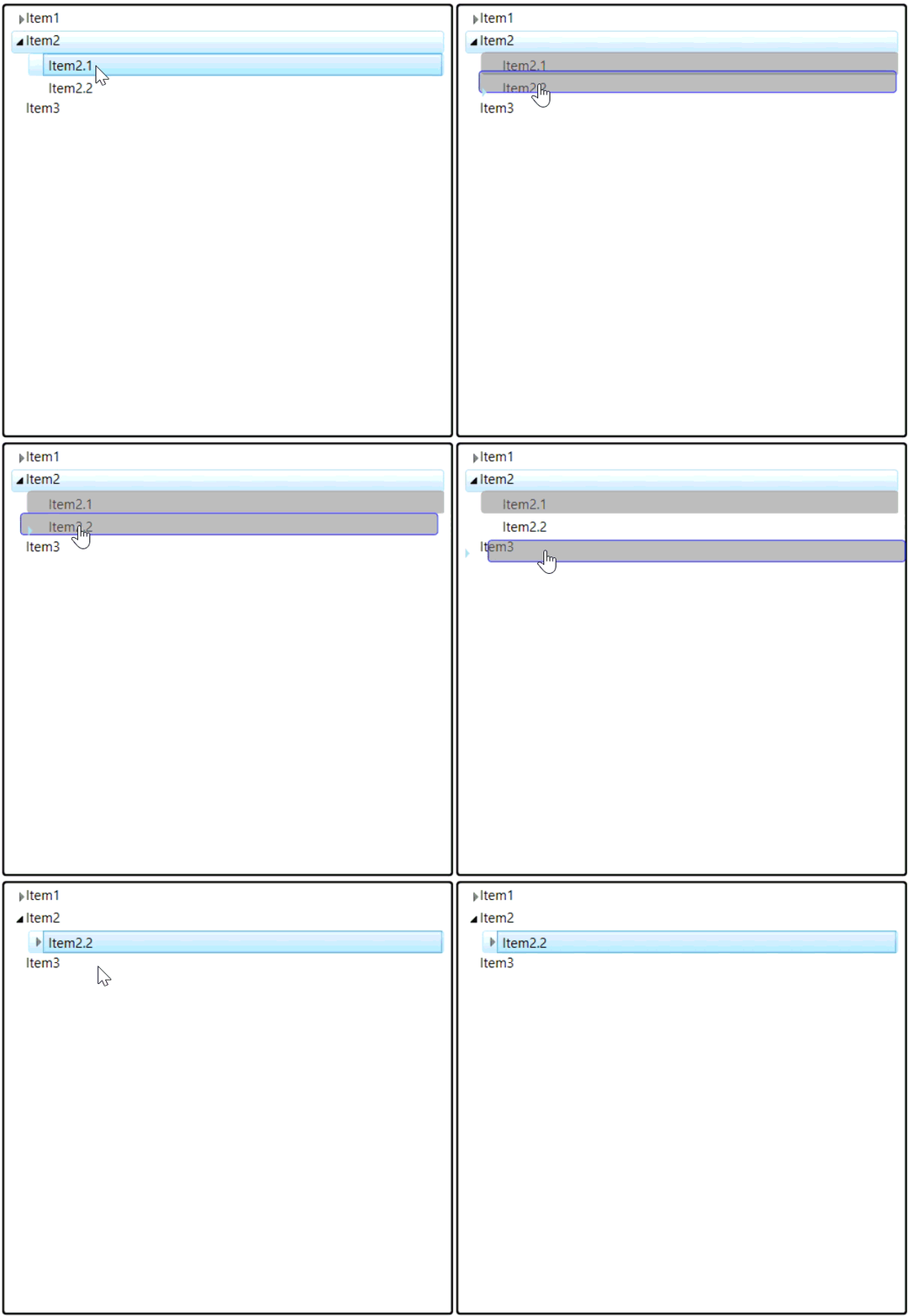
The end appearance will reflect the styles defined by the user: